
Overview
Before submitting a supplier registration request, search for the supplier in BearBuy to identify whether the supplier has an existing profile or if a new profile needs to be created. This step ensures you follow the correct process for updating or adding a supplier.
Follow the instructions below to complete the search and determine the appropriate next steps.
Steps to Search in BearBuy
- Log in to your UCSF MyAccess account.
- Click on the BearBuy link to open the application.
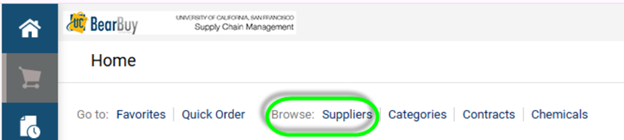
On the landing page, navigate to Browse and click Suppliers.
Click “+” to expand the Search filter.

Enter the supplier name and click Search.

- Review your search results. Select the supplier to view details such as supplier number.
- If the supplier is not found, double-check the spelling to ensure accuracy.
Interpreting Search Results
Use the table below to determine next steps based on the search results.
| Search Result | Next Steps |
| Supplier found in BearBuy and no profile updates are needed | Proceed with the order/transaction |
Supplier found in BearBuy without Graphite icon and profile updates are needed 
| If the supplier needs to be enabled for PO ordering, send a Graphite Connect invitation to the supplier to complete/update their profile. For other profile updates, request the supplier to submit the required form(s) to [email protected]. |
Supplier found in BearBuy with Graphite icon and profile updates are needed
| Request the supplier to update their information in Graphite Connect |
| Supplier not found in BearBuy and will be providing goods and/or services (PO-based supplier) | Send a Graphite Connect invitation to the supplier |
| Supplier not found in BearBuy and will not be providing goods and/or services (payment-only supplier) | Request the supplier to submit the required form(s) to [email protected] |