
Overview
This page contains training and resources to help UCSF campus users navigate MyMarketplace.
MyMarketplace Training Materials
MyMarketplace is a purchasing platform that integrates the BearBuy supplier catalogs to streamline search functionality and increase price transparency across suppliers.
You will access MyMarketplace from within BearBuy, and your MyMarketplace order will be transferred to your BearBuy shopping cart to complete checkout and approvals in BearBuy.
Please continue to use the BearBuy purchasing forms to buy items from suppliers that do not host a hosted catalog or punch-out catalog in BearBuy or MyMarketplace.
Accessing MyMarketplace
MyMarketplace is accessible in BearBuy.
- First, log into your UCSF MyAccess account.
- Then, click the BearBuy link to open the application.
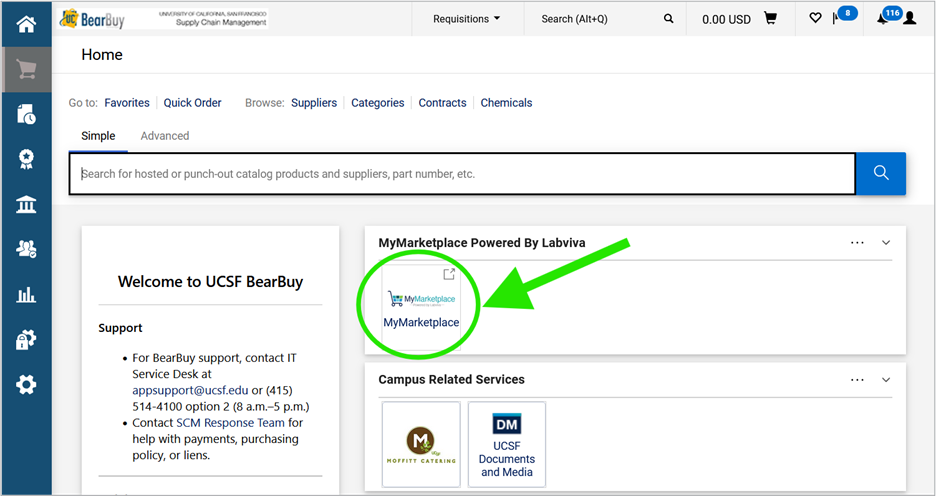
- Next, click the MyMarketplace icon located near the top of the BearBuy shopping homepage.
Search and Compare Prices in MyMarketplace
These instructions explain how to search for items and compare prices across suppliers. This search technique is limited to items hosted in the MyMarketplace catalog. Additional items are available in the supplier punch-out sites, such as Amazon Business or CDW (see Open a Supplier Punch-out below).
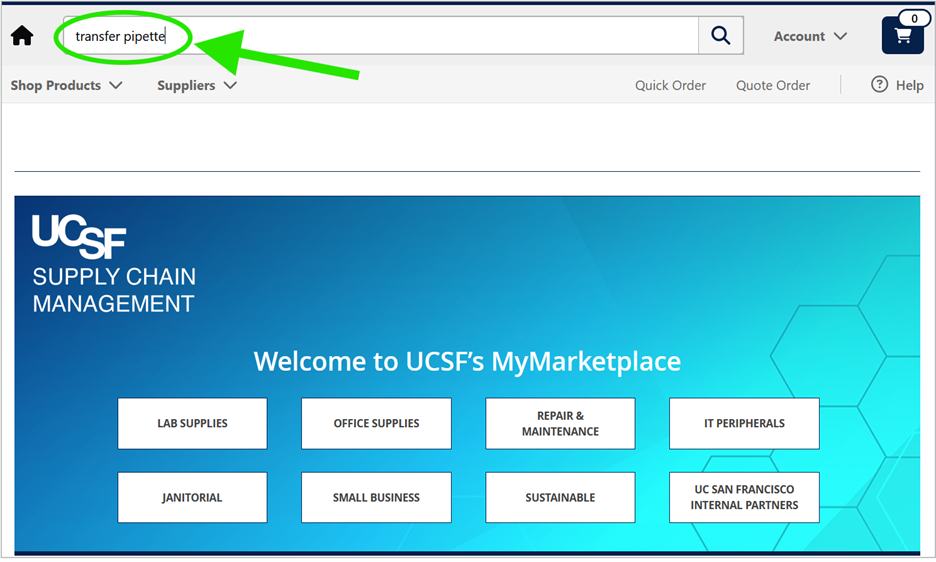
- In MyMarketplace, enter your search terms in the search bar at the top.
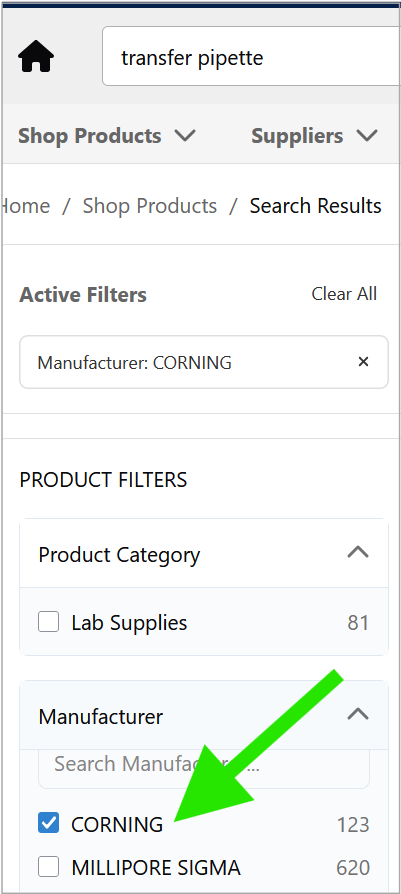
- Use the filters on the left to refine your search by Manufacturer, Vendor, Free Shipping, Small Business, etc.
- Click on the item to view the product details.
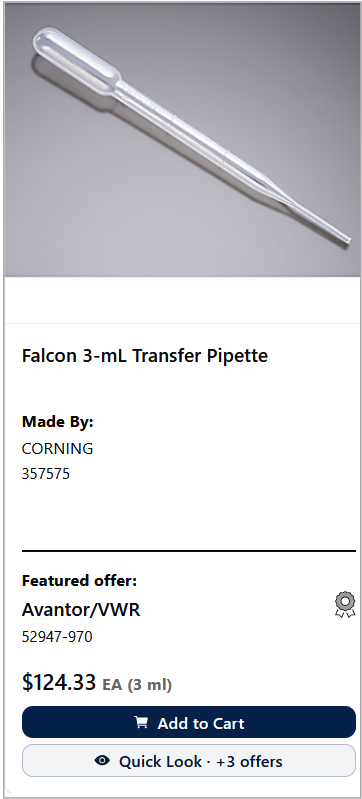
- If the same item is available from other suppliers, a price comparison will display. Scroll down to view prices and/or Similar Products.
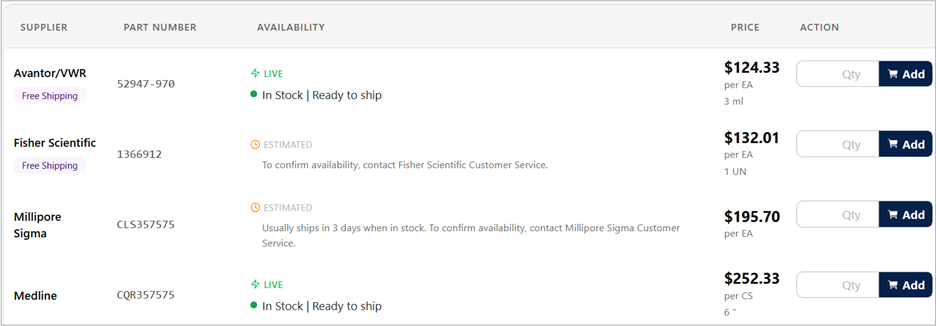
- Click Add to add the item to your cart. The Cart icon at the top of your screen will display the number of items in the cart. Click on the Cart icon to view your cart.
- Click Proceed to Checkout.
- Click Place Order. Your order will be transferred to a BearBuy shopping cart.
- Complete checkout in BearBuy.
Opening a Supplier Punch-out in MyMarketplace
Supplier punch-out sites contain additional items and customizable options.
Examples: Amazon Business, CDW, Dell, Fisher Scientific, VWR
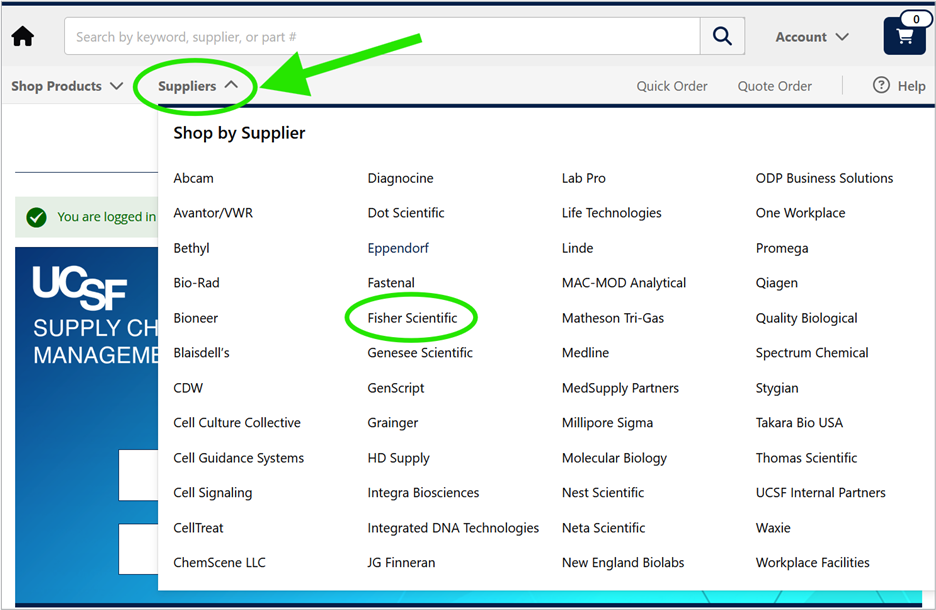
- In MyMarketplace, click the Suppliers dropdown at the top, and select the supplier name, such as Fisher Scientific. This will take you to the supplier’s page.
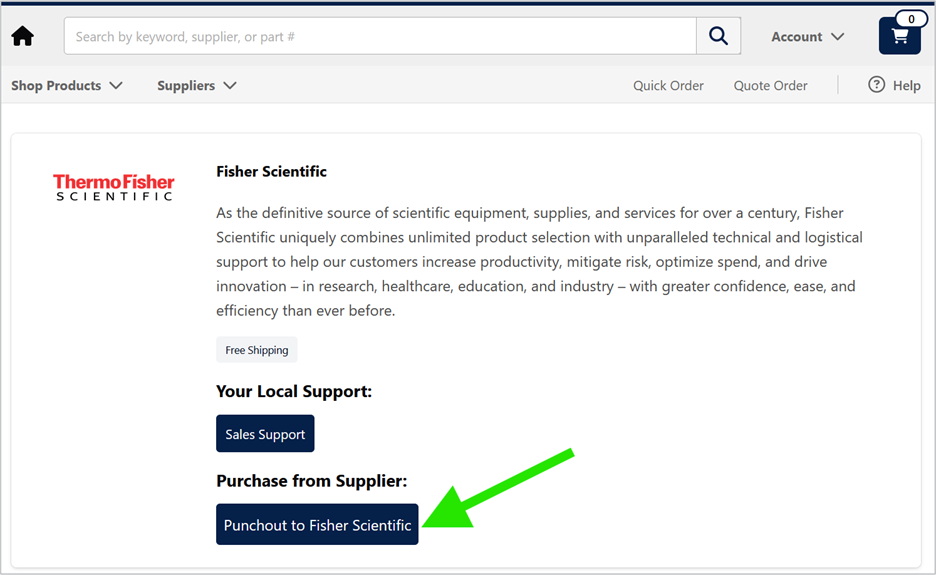
- On the supplier’s page, click the Punchout To [Supplier Name] button. Wait a moment for the punch-out to open.
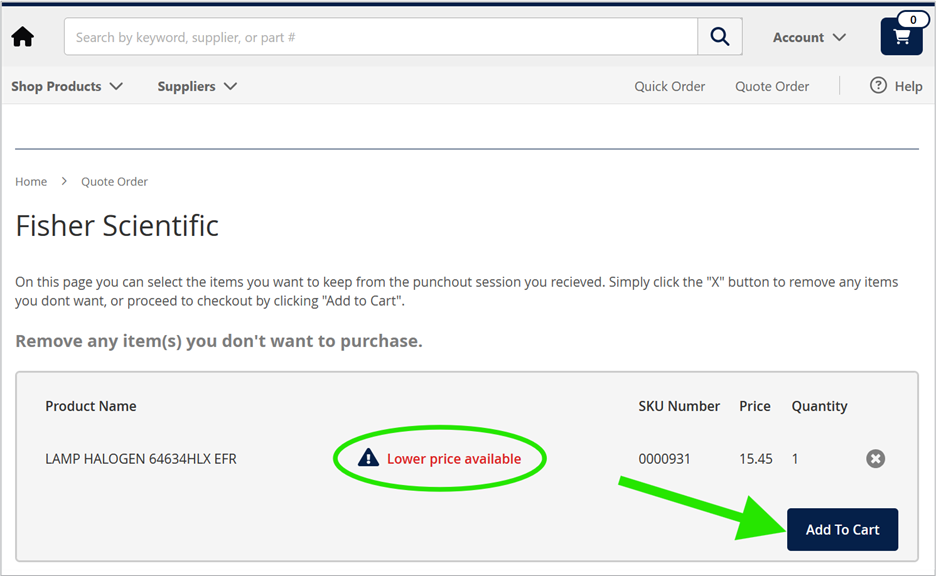
- Shop in the punch-out and checkout. When you are brought back to MyMarketplace, select Add to Cart to add the items to your MyMarketplace cart. Note: If the same item is available in another supplier’s catalog hosted in MyMarketplace, you will see the “Lower price available” alert. Click the alert to view options and select the item you wish to buy.
- The Cart icon at the top of your screen will display the number of items in the cart. Click on the Cart icon to view your cart.
- Click Proceed to Checkout.
- Click Place Order. Your order will be transferred to a BearBuy shopping cart.
- Complete checkout in BearBuy.
Quote Orders
Typically, you will find your quote in the supplier’s punch-out. However, in some cases, you may need to upload the quote yourself in MyMarketplace.
Note: To upload a quote using the Quote Order functionality, the supplier must be a catalog supplier.
- In MyMarketplace, click Quote Order.
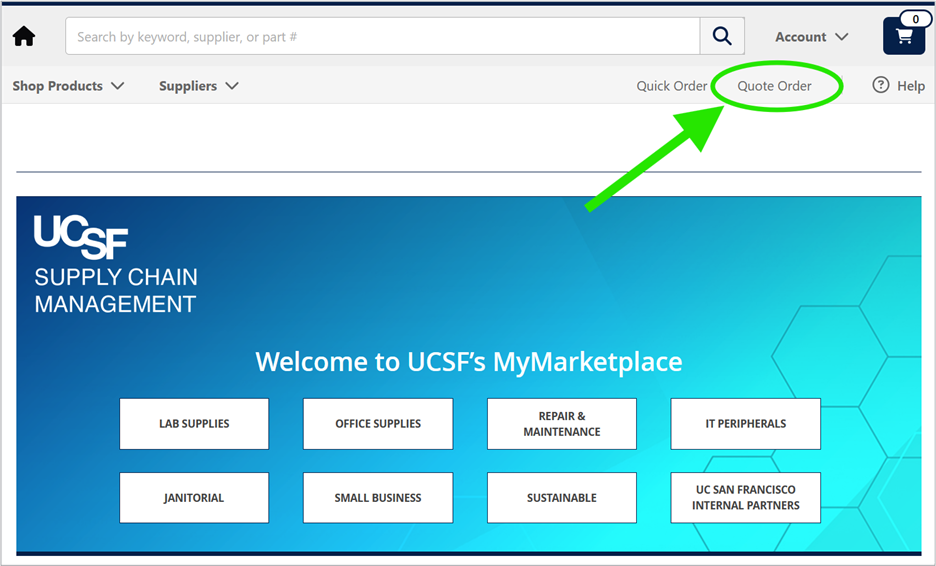
- Start typing the supplier’s name in the search box and select the correct supplier.
- Select Upload and Parse (AI Powered).
- The order details will automatically appear below the quote image. Remove any items you do not plan to purchase.
- Scroll to the top and select Add to Cart.
- Review the order and click Proceed to Checkout.
- Then, click Place Order. Your order will be transferred to a BearBuy shopping cart.
- Complete checkout in BearBuy.
My Orders
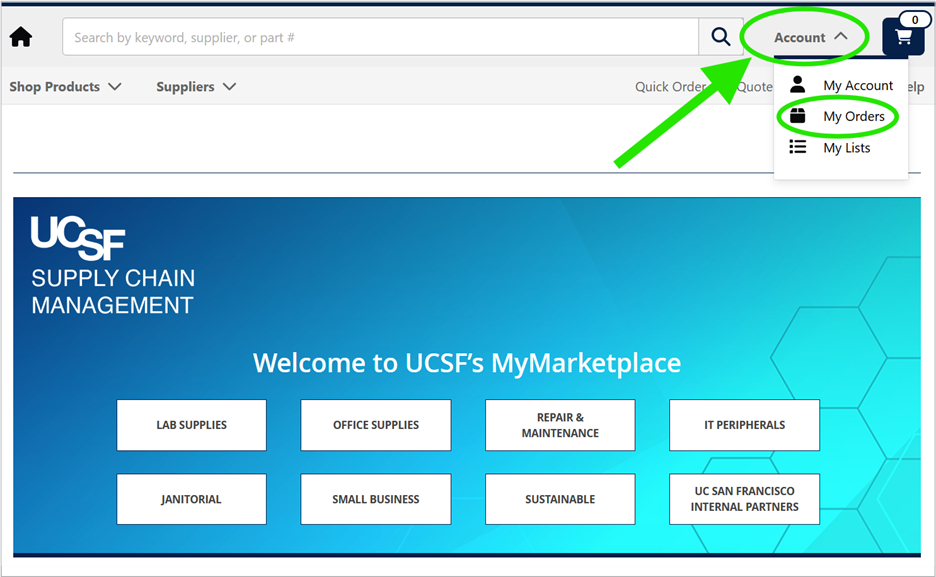
To view your MyMarketplace orders, click Account > My Orders.
This will list your previous orders that were transferred to BearBuy.
Note: Checkout and approvals will be completed in BearBuy.
My Lists
Create lists to save items for future purchases.
- Search for an item in MyMarketplace and click on the item to view the product details.
- Click the Add to List link located beneath the price.
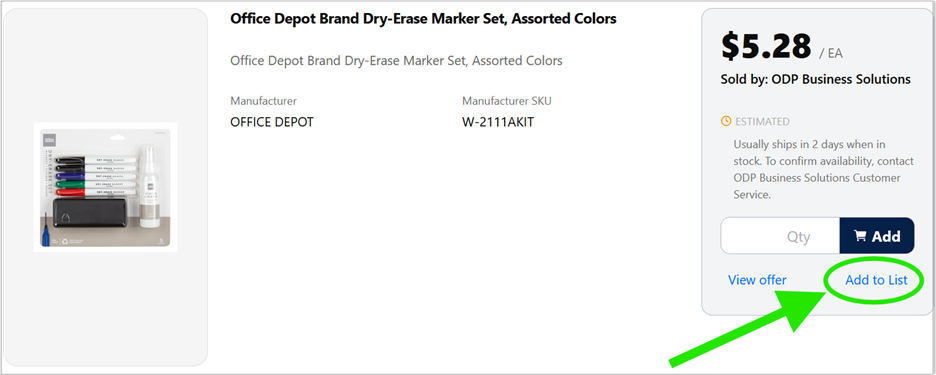
- Then, click New List.
- Enter the list name and click Create & Add or add it to an existing list
- You will now see the words “In List” where it once said Add to List.
To view your lists, click Account > My Lists.

Training Documents & Recordings
Upcoming Training
Supplier Catalog Transition Resources
As supplier catalogs transition into MyMarketplace, additional supplier-specific guidance and transition notices will be posted here.
Support
Need Help?
For purchasing questions, submit a ticket to the SCM Response Team.
For MyMarketplace system questions, contact:
UCSF Labviva Project Manager and eCommerce Lead
Business Solutions Specialist, SCM
UCSF
UC Systemwide Labviva Product and Project Manager
Systems and Technology Manager, UC Systemwide Procurement
University of California, Office of the President
Submit Feedback
Feedback helps Supply Chain Management improve the MyMarketplace experience. Share your feedback and experience at MyMarketplace User Feedback.